This blog provides tips and tricks of the computing world....If you have any problem feel free to mail me crunchypc@gmail.com....
Google
 
Showing posts with label windows. Show all posts

Thursday, March 27, 2008

How to Disable Security Center Alerts and Balloons Warning


How to Disable Security Center Alerts

To turn off Security Center alerts

Do you ever get annoyed with the Windows Security Center Pop-Up telling you that you are not protected because you do not have any Anti-Virus Software, or Automatic Updates is turned off? Well so was I. That is why I searched the internet for the answer and I finally found it. In light of that here are detailed instructions on how to disable those Balloon hint tips from the Windows Security Center.

1.

Click Start and then click Control Panel.

2.

Double-click Security Center.

3.

In the Security Center, under Resources, click Change the way Security Center alerts me.

4.

In the Alert Settings dialog box, clear the Firewall, Automatic Updates, or Virus Protection check boxes, and then click OK.

When you use this procedure, the Security Center still displays your status, but does not send you alerts.

Tuesday, March 25, 2008

Missing shut down button


-Tips-

Solution
To enable the shut downbutton in regedit

[HKEY_CURRENT_USER\Software\Microsoft\Windows\CurrentVersion\Policies\ Explorer] "NoClose"=dword:00000000

(if the dword value is 00000001 double click in the right hand window where is says NoClose and change the 1 to a 0)


Wednesday, March 12, 2008

Change the Windows User Password via Command Line


-Tips-

Are you an administrator on the Windows operating system with multiple user accounts? Have you forgotten the password to one of those accounts and you are locked out? Then, provided you are the administrator, you can reset the password from the command line.

To open the Windows command line, just go to your start menu then choose “run” (or press your Windows key and then press R). Then in the box that pops up, type cmd and press enter.

In the black box that comes up, type net user then enter. This will give you a list of all your Windows accounts on that computer.

To change the password for one of these accounts is very simple. Say the Windows account name is asks and you want to change the password to mypa$$word then you just need to type the following :

    net user asks mypa$$word

After pressing enter, you should then get a message saying “the command completed successfully”. That means the password has now been changed and you can now log into that account.

Tuesday, March 11, 2008

Protect your PC while Running Suspicious Programs


-Tips-

As a general rule of thumb, you should never download freeware apps unless it comes from a reputable source. Otherwise you could be letting yourself in for a whole lot of trouble if that cool little freeware app happens to contain malicious code. However if you MUST try out a new program which has come from dubious sources, you can use a Windows feature to protect your PC.

When you have downloaded the program, don’t double-click to install it just yet. First, right-click on the program icon and choose “run as”. When the “run as” box comes up, you’ll see the following box above

Select “current user” and make sure the “protect my computer and data from unauthorized program activity” box is ticked. Then click OK. You can then do a limited installation of the program in “safe mode” so you can check it out. Having the “protect my computer” option ticked means that the Registry can be read by the application but the application can’t change anything in the Registry. So if there is any rogue code in that freeware app, it won’t wreak any havoc on your PC.

When you are convinced that the app is OK, come out of the safe mode and install the program properly.

Saturday, March 1, 2008

Freeware Password Revealer


-Tips-

You probably don't keep track of every password you have used. You may just let Windows save your password for you. Sound familiar. What happens if you need that password and you can't remember it. All you can see is those ******* asterisks. Wouldn't you like to turn those asterisks into actual text. This program can be used for revealing passwords that are stored in text boxes that conceal the text behind asterisks, such as the ones in Dial-up Networking or Outlook Express.

Choose any of these freeware to reveal your asterisks password.

Download Kill Password
Download Militia Password Revealer

Delete the UNDELETABLE file with UNLOCKER


-Tips-

Download from ccollomb

Get rid of error message like Error deleting file or folder, cannot delete folder: it's being used by another person or program

Unlocker application was designed to be a very useful Windows Explorer extension allowing users with a simple right-click on a file or folder to easily get rid of error message such as error deleting file or folder, cannot delete folder: it's being used by another person or program.

Helps delete locked files with error messages like:
· Cannot delete file: Access is denied
· There has been a sharing violation.
· The source or destination file may be in use.
· The file is in use by another program or user.
· Make sure the disk is not full or write-protected and that the file is not currently in use.

Thursday, February 28, 2008

SUPER © v2008.build.25 Free Converter


-Freeware Application-

Download from erightsoft
Download from softpedia

SUPER © Simplified Universal Player Encoder & Renderer. A GUI to ffmpeg, MEncoder, mplayer, x264, mppenc, ffmpeg2theora & the theora/vorbis RealProducer plugIn.
If you need a simple, yet very efficient tool to convert (encode) or play any Multimedia file, without reading manuals or spending long hours training, then SUPER © is all you need. It is a Multimedia Encoder and a Multimedia Player, easy-to-use with 1 simple click.
SUPER © "The Player" surpasses any known player by supporting just any Multimedia file format. SUPER © plays files that cannot be played with WMP or even MPC and VLC the advanced Libavcodec based players. SUPER © also plays and saves Internet Media Streams of different protocols ( mms:// rtsp:// http://)

SUPER © "The Encoder" is the fastest and simplest tool to encode full
length movies to any other format without any time or function limitation.

NO trial or evaluation version of SUPER © but one unique
Free to download and Free to use fully working version.

SUPER © does NOT require any additional external codec to
be installed, absolutely nothing. Necessary codecs are built in!

Customize Your Login Screen with LogonStudio


-Tips-
Windows only: Freeware application LogonStudio brings full login screen customization to your Windows XP or Vista PC. The app comes with several built-in login screens and images, but you can customize practically ever section of your login screen to your heart's content. LogonStudio is freeware, Windows only.

Download LogonStudio here

Tuesday, February 26, 2008

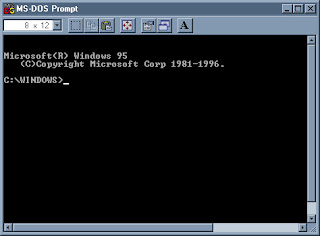
Usefull MS-DOS Commands For Easy Use


-Tips-

The commonly used commands in dos are listed here with a brief description

md

Creates a directory.

MKDIR [drive:]path
MD [drive:]path

If Command Extensions are enabled MKDIR changes as follows:

MKDIR creates any intermediate directories in the path, if needed.
For example, assume \a does not exist then:

mkdir \a\b\c\d

is the same as:

mkdir \a
chdir \a
mkdir b
chdir b
mkdir c
chdir c
mkdir d

which is what you would have to type if extensions were disabled.

cd

Displays the name of or changes the current directory.

CHDIR [/D] [drive:][path]
CHDIR [..]
CD [/D] [drive:][path]
CD [..]

.. Specifies that you want to change to the parent directory.

Type CD drive: to display the current directory in the specified drive.
Type CD without parameters to display the current drive and directory.

Use the /D switch to change current drive in addition to changing current
directory for a drive.

If Command Extensions are enabled CHDIR changes as follows:

The current directory string is converted to use the same case as
the on disk names. So CD C:\TEMP would actually set the current
directory to C:\Temp if that is the case on disk.

CHDIR command does not treat spaces as delimiters, so it is possible to
CD into a subdirectory name that contains a space without surrounding
the name with quotes. For example:

cd \winnt\profiles\username\programs\start menu

is the same as:

cd "\winnt\profiles\username\programs\start menu"

which is what you would have to type if extensions were disabled.

rd

Removes (deletes) a directory.

RMDIR [/S] [/Q] [drive:]path
RD [/S] [/Q] [drive:]path

/S Removes all directories and files in the specified directory
in addition to the directory itself. Used to remove a directory
tree.

/Q Quiet mode, do not ask if ok to remove a directory tree with /S

dir

Displays a list of files and subdirectories in a directory.

DIR [drive:][path][filename] [/A[[:]attributes]] [/B] [/C] [/D] [/L] [/N]
[/O[[:]sortorder]] [/P] [/Q] [/S] [/T[[:]timefield]] [/W] [/X] [/4]

[drive:][path][filename]
Specifies drive, directory, and/or files to list.

/A Displays files with specified attributes.
attributes D Directories R Read-only files
H Hidden files A Files ready for archiving
S System files - Prefix meaning not
/B Uses bare format (no heading information or summary).
/C Display the thousand separator in file sizes. This is the
default. Use /-C to disable display of separator.
/D Same as wide but files are list sorted by column.
/L Uses lowercase.
/N New long list format where filenames are on the far right.
/O List by files in sorted order.
sortorder N By name (alphabetic) S By size (smallest first)
E By extension (alphabetic) D By date/time (oldest first)
G Group directories first - Prefix to reverse order
/P Pauses after each screenful of information.
/Q Display the owner of the file.
/S Displays files in specified directory and all subdirectories.
/T Controls which time field displayed or used for sorting
timefield C Creation
A Last Access
W Last Written
/W Uses wide list format.
/X This displays the short names generated for non-8dot3 file
names. The format is that of /N with the short name inserted
before the long name. If no short name is present, blanks are
displayed in its place.
/4 Displays four-digit years

Switches may be preset in the DIRCMD environment variable. Override
preset switches by prefixing any switch with - (hyphen)--for example, /-W.

tree

Graphically displays the folder structure of a drive or path.

TREE [drive:][path] [/F] [/A]

/F Display the names of the files in each folder.
/A Use ASCII instead of extended characters.

ren

Renames a file or files.

RENAME [drive:][path]filename1 filename2.
REN [drive:][path]filename1 filename2.

Note that you cannot specify a new drive or path for your destination file.

copy

Copies one or more files to another location.

COPY [/D] [/V] [/N] [/Y | /-Y] [/Z] [/A | /B ] source [/A | /B]
[+ source [/A | /B] [+ ...]] [destination [/A | /B]]

source Specifies the file or files to be copied.
/A Indicates an ASCII text file.
/B Indicates a binary file.
/D Allow the destination file to be created decrypted
destination Specifies the directory and/or filename for the new file(s).
/V Verifies that new files are written correctly.
/N Uses short filename, if available, when copying a file with a
non-8dot3 name.
/Y Suppresses prompting to confirm you want to overwrite an
existing destination file.
/-Y Causes prompting to confirm you want to overwrite an
existing destination file.
/Z Copies networked files in restartable mode.

The switch /Y may be preset in the COPYCMD environment variable.
This may be overridden with /-Y on the command line. Default is
to prompt on overwrites unless COPY command is being executed from
within a batch script.

To append files, specify a single file for destination, but multiple files
for source (using wildcards or file1+file2+file3 format).

format

Formats a disk for use with Windows XP.

FORMAT volume [/FS:file-system] [/V:label] [/Q] [/A:size] [/C] [/X]
FORMAT volume [/V:label] [/Q] [/F:size]
FORMAT volume [/V:label] [/Q] [/T:tracks /N:sectors]
FORMAT volume [/V:label] [/Q]
FORMAT volume [/Q]

volume Specifies the drive letter (followed by a colon),
mount point, or volume name.
/FS:filesystem Specifies the type of the file system (FAT, FAT32, or NTFS).
/V:label Specifies the volume label.
/Q Performs a quick format.
/C NTFS only: Files created on the new volume will be compressed
by default.
/X Forces the volume to dismount first if necessary. All opened
handles to the volume would no longer be valid.
/A:size Overrides the default allocation unit size. Default settings
are strongly recommended for general use.
NTFS supports 512, 1024, 2048, 4096, 8192, 16K, 32K, 64K.
FAT supports 512, 1024, 2048, 4096, 8192, 16K, 32K, 64K,
(128K, 256K for sector size > 512 bytes).
FAT32 supports 512, 1024, 2048, 4096, 8192, 16K, 32K, 64K,
(128K, 256K for sector size > 512 bytes).

Note that the FAT and FAT32 files systems impose the
following restrictions on the number of clusters on a volume:

FAT: Number of clusters <= 65526
FAT32: 65526 < Number of clusters < 4177918

Format will immediately stop processing if it decides that
the above requirements cannot be met using the specified
cluster size.

NTFS compression is not supported for allocation unit sizes
above 4096.

/F:size Specifies the size of the floppy disk to format (1.44)
/T:tracks Specifies the number of tracks per disk side.
/N:sectors Specifies the number of sectors per track.

Remove Security Alerts From System Tray


-Tips-
Are you bored of alerting that your automatic update is turned of or anitvirus program is not installed or out of date, everytime windows start up? It can be removes easily with the few following steps

1. Goto Start > Control Panel > Security Center.

In the left pane, click the Change the way Security Center alerts me link, located at the end of the column. In the new window that pops up, uncheck everything or what you don't want.

Saturday, February 23, 2008

Free Portable Programs for Your Thumbdrive


-Tips-
Now you can carry your favorite computer programs along with all of your bookmarks, settings, email and more with you. Use them on any Windows computer. All without leaving any personal data behind.
Now you can have many popular application like mozzila firefox, thunderbird, 7 zip, audacity, open office, abi word, vlc palyer and even Mac operating system in your thumb drive.
To download these and a lot more portable application, visit portableapps.com

Keyboard Shortcuts

-Tips-

Click Here to find out the useful keyboard shortcuts


Easy sendto menu modification


-Tips-
first open - X:\Documents and Settings\username\SendTo (it is hidden) where X is your drive letter and username is your username make and delete shortcuts to folders and devices at will


Remove the Recycle Bin from the Desktop


-Tips-

If you don't use the Recycle Bin to store deleted files , you can get rid of its desktop icon all together.

Run Regedit and go to:

HKEY_LOCAL_MACHINE/SOFTWARE/Microsoft/Windows/CurrentVersion/explorer/Desktop/NameSpace


Click on the "Recycle Bin" string in the right hand pane. Hit Del, click OK.

Removing Programs listed from the Control Panel’s Add/Remove Programs


-Tips-
If you remove an installed program and its files by deleting the files, it may still show up in the Add/Remove programs list through the control panel. In order to remove it from the list (so you don’t need to re-install in order to just remove it again).
  1. Start the Registry Editor by clicking RUN from start menu and entering ‘regedit’ without quotes.
  2. Open HKEY_LOCAL_MACHINE / SOFTWARE / Microsoft / Windows / CurrentVersion / Uninstall
  3. Delete any programs from the list.
This will only delete them from the list, not delete the actual programs. Only programs designed for Windows95 will show up here in the first place.

Friday, February 22, 2008

Regedit disabled by virus


-Solution-

Download Registry Fix 1.0

Registry editing has been disabled by your administrator” - Error you get when you try to open the Registry Editor in Windows XP, Windows 2000, Windows Vista and prevents access to registry editing.

Thursday, February 21, 2008

Task Manager DIsabled by virus


-Solution-

Download Fix Task Manager 2.0 Freeware

info
----

Windows system recovery tool to enable disabled Windows Task Manager. Utility to enable Task Manager disabled by virus, trojans, spyware etc. Software is designed to enable taskmanager which is disabled by the virus, trojans and spywares.

RUN command missing from start menu


-Solution-

Go to C:\WINDOWS\system32\gpedit.msc

open gpedit.msc

goto:

"user config..."
"admin..."
"start menu..."
set "remove run menu from start menu" to "disabled"

and YOU are DONE....

my FIRST post


This blog was created to help anyone with pc problem....Nowadays viruses, spy ware, etc, have give a lot of trouble to pc user..I will post the tips and solution regarding this matter..If you have any problem feel free to ask me....